Staff logins, roles & permissions
Requirements
- Available on: All plans
- Device access: Web & mobile browser
- Permission: Owner or Manager
A staff member's role controls what they can see and do once they log in. This article explains the four roles, the per-person Permissions boxes for providers, and how to give, reset, or remove a login.
The four roles
| Role | What they can do |
|---|---|
| Owner | Full access to everything, including billing, plan changes, and SalonHub360 Payments setup. |
| Manager | Runs day-to-day operations — calendar, clients, staff, services. Cannot change billing or the subscription plan. |
| Receptionist | Front desk: bookings, customers, check-in, and taking payments. Cannot manage staff or edit services. |
| Provider | A stylist or service provider. Sees their own bookings and schedule. Anything more — clients, services, other people's schedules — is something you switch on per person (see Permissions tab below). |
Note: New staff you add are set up as a Provider by default, with every permission box unticked: they see their own schedule and the names of the clients on their own appointments, and nothing else. Owners and Managers always have full access.
The Permissions tab (providers and contractors)
Open Staff, find the person, click Edit, then open the Permissions tab. Five boxes decide what this person can see beyond their own schedule:
| Box | What it unlocks |
|---|---|
| Can see customers | The Customers page, client search, client profiles and contact details (phone, email), and reviews. |
| Can edit customers | Everything above, plus adding and editing clients. (Ticking this ticks Can see customers too.) |
| Can see services | The Services page — your menu, prices and durations. |
| Can edit services | Everything above, plus adding, editing and removing services. (Ticking this ticks Can see services too.) |
| Can see everyone's schedule | The whole salon's calendar and appointments, not just their own, plus the staff list. |
Everyone always sees their own schedule, and the client's name on their own appointments. Click Save permissions; changes take effect within a few minutes (the person may need to reopen the app). The tab only shows these boxes for Providers and Contractors — Owners, Managers and Receptionists get their access from the role itself.
Logins are optional
Staff don't need a login to be useful. A bookable-only stylist appears in online booking and on your calendar without ever signing in. Give a login only when someone needs to use the app — for example, to view their schedule, check in clients, or take payments.
How to give, reset, or remove a login
-
In the left menu, open Staff, find the person, and click Edit. The login controls are on the Details tab of their page.
<!-- CAPTURE: route=/staff/[id] | login=owner | state=Details tab for a staff member with a login | highlight=Allow this staff member to log in section | viewport=1440x900 -->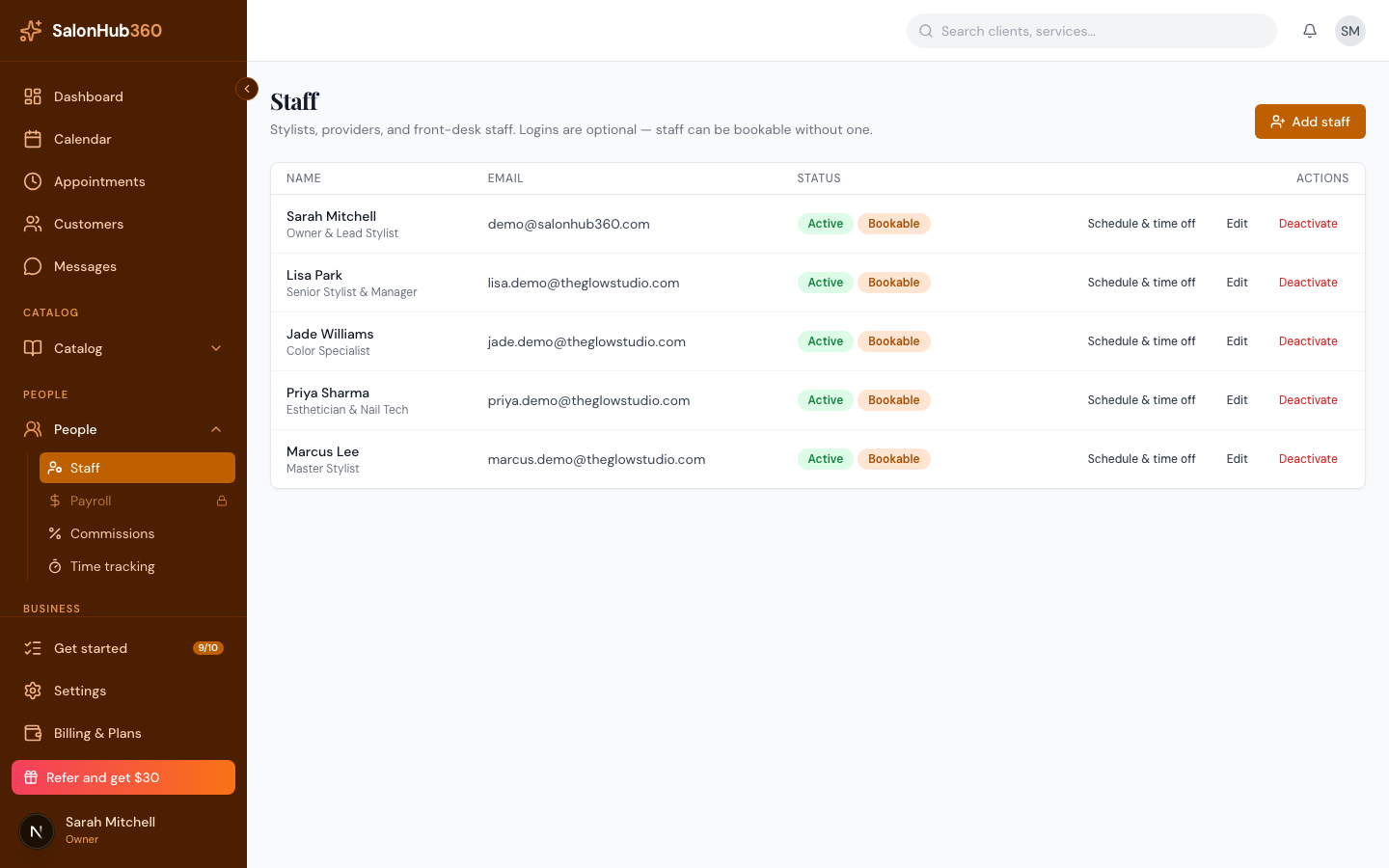
-
To add a login to a bookable-only staff member, use the Enable login panel: enter an Email and an Initial password (at least 8 characters), then click Enable login.
-
To reset a password, type a new password (at least 8 characters) in the Reset password box and click Reset password. Their account and bookings stay the same — only the password changes.
<!-- CAPTURE: route=/staff/[id] | login=owner | state=Details tab, Reset password box visible | highlight=Reset password button | viewport=1440x900 -->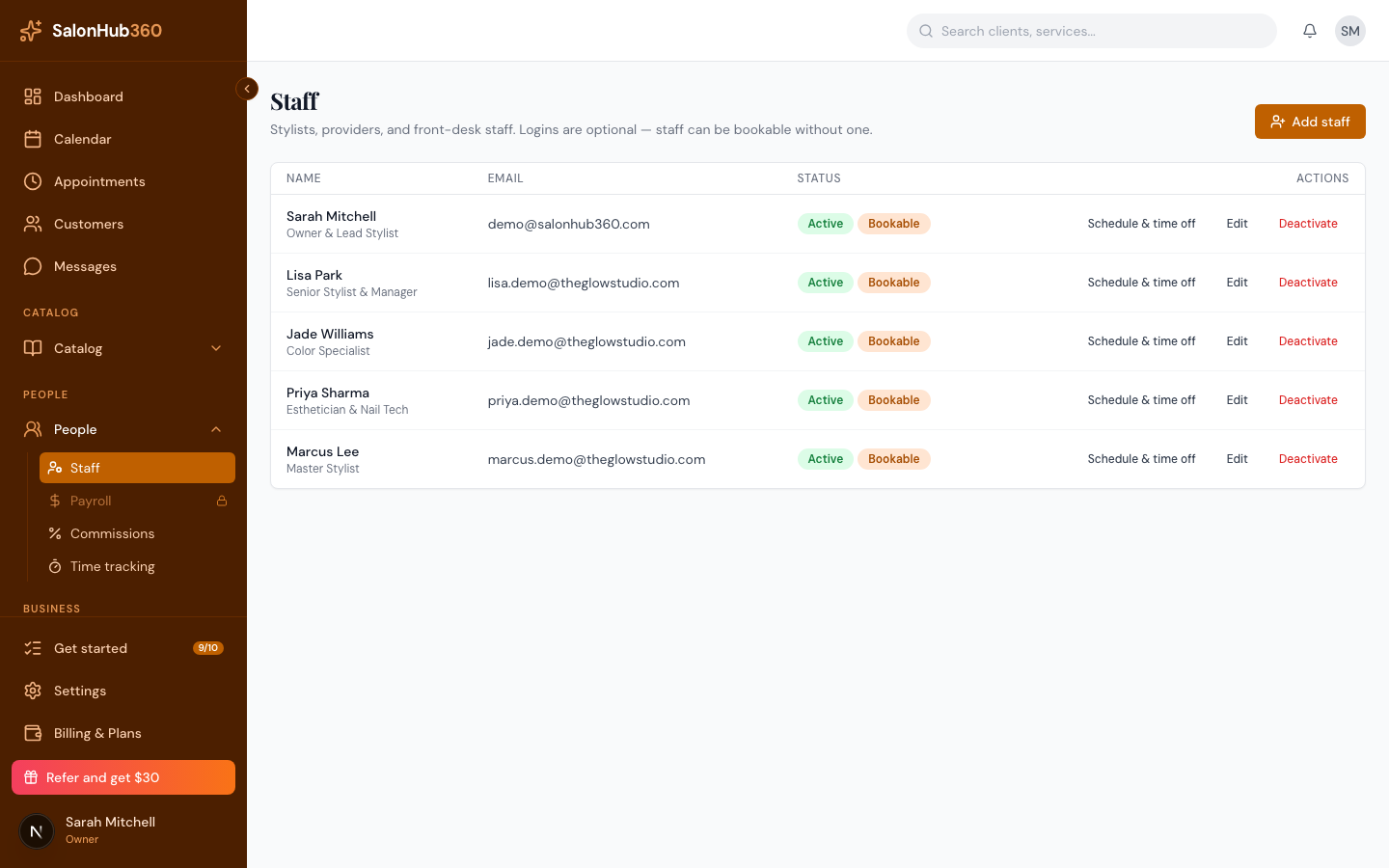
-
To remove a login, untick Allow this staff member to log in. They're signed out and can't log in until you enable it again. (You can't disable your own login.)
Note: Always share a new password through a secure channel — never in a public message. SalonHub360 shows the password only at the moment you set it.
Tip: To pause new bookings for someone (a holiday or short break), untick Accepts new bookings on the Details tab, or add time off. When someone is leaving, untick Active on the Details tab and click Save — this signs them out of the staff app and stops their calendar link (they'll need a new link if you reactivate them).
Related articles