Assign staff to services & locations
Requirements
- Available on: All plans
- Device access: Web & mobile browser
- Permission: Owner or Manager
For a stylist to show up in online booking, SalonHub360 needs to know where they work and what they can be booked for. You set both on the staff member's page — locations on the Schedule tab, services on the Services tab.
How to assign locations
-
In the left menu, open Staff, find the person, and click Edit, then open the Schedule tab.
-
In the Locations section (below the weekly schedule), tick each location this person works at.
<!-- CAPTURE: route=/staff/[id]?tab=schedule | login=owner | state=Schedule tab, Locations panel with one location ticked | highlight=location checkbox list | viewport=1440x900 -->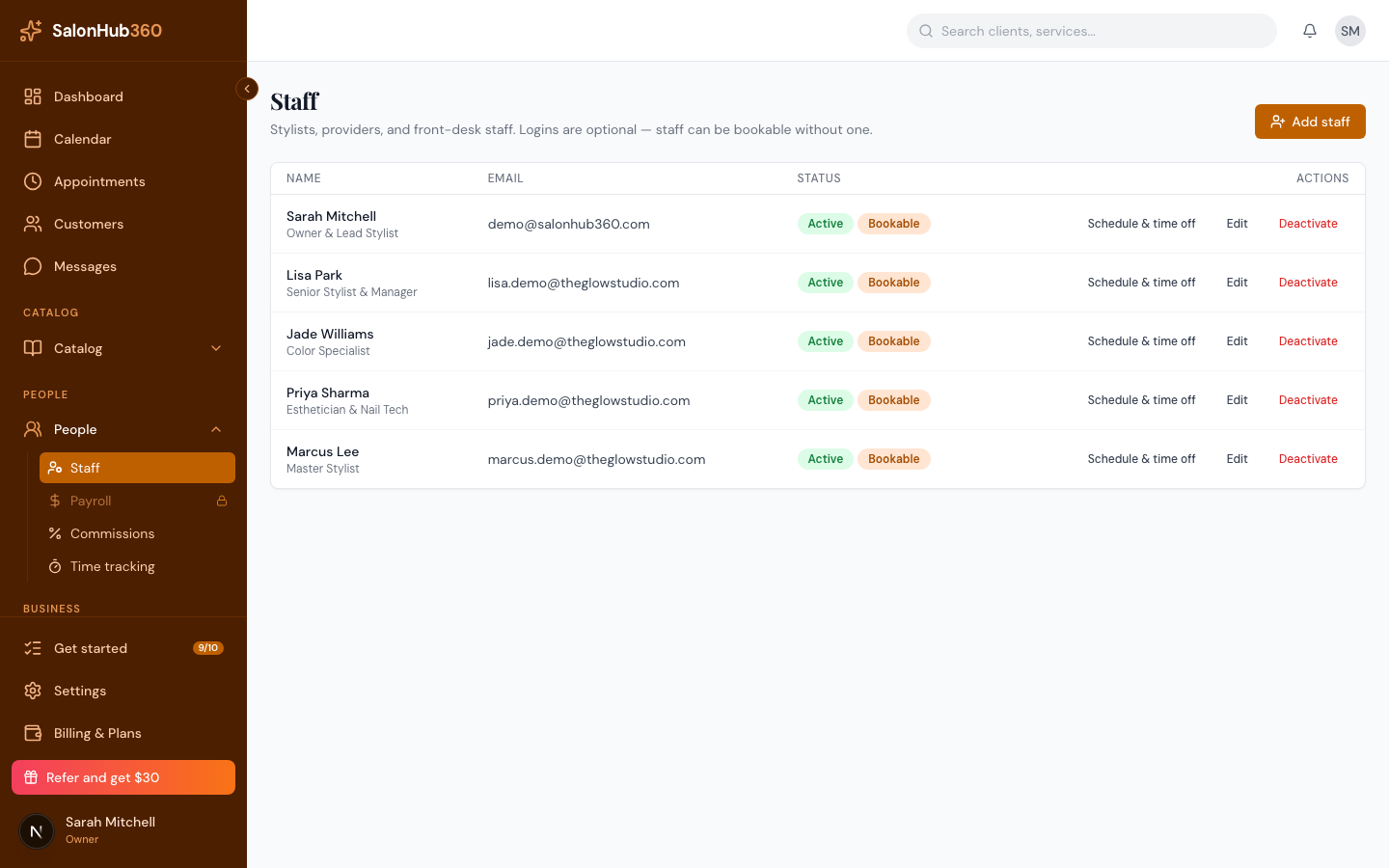
Changes save as you tick. A staff member must be assigned to at least one location to appear in online booking — if none are assigned, you'll see a reminder to add one.
Note: No locations to choose from? Add one first under Settings → Locations. See Add your location & business hours.
How to assign services
-
On the same page, open the Services tab.
-
Tick each service this staff member performs.
<!-- CAPTURE: route=/staff/[id]?tab=services | login=owner | state=Services tab with a few services ticked | highlight=service checkbox list | viewport=1440x900 -->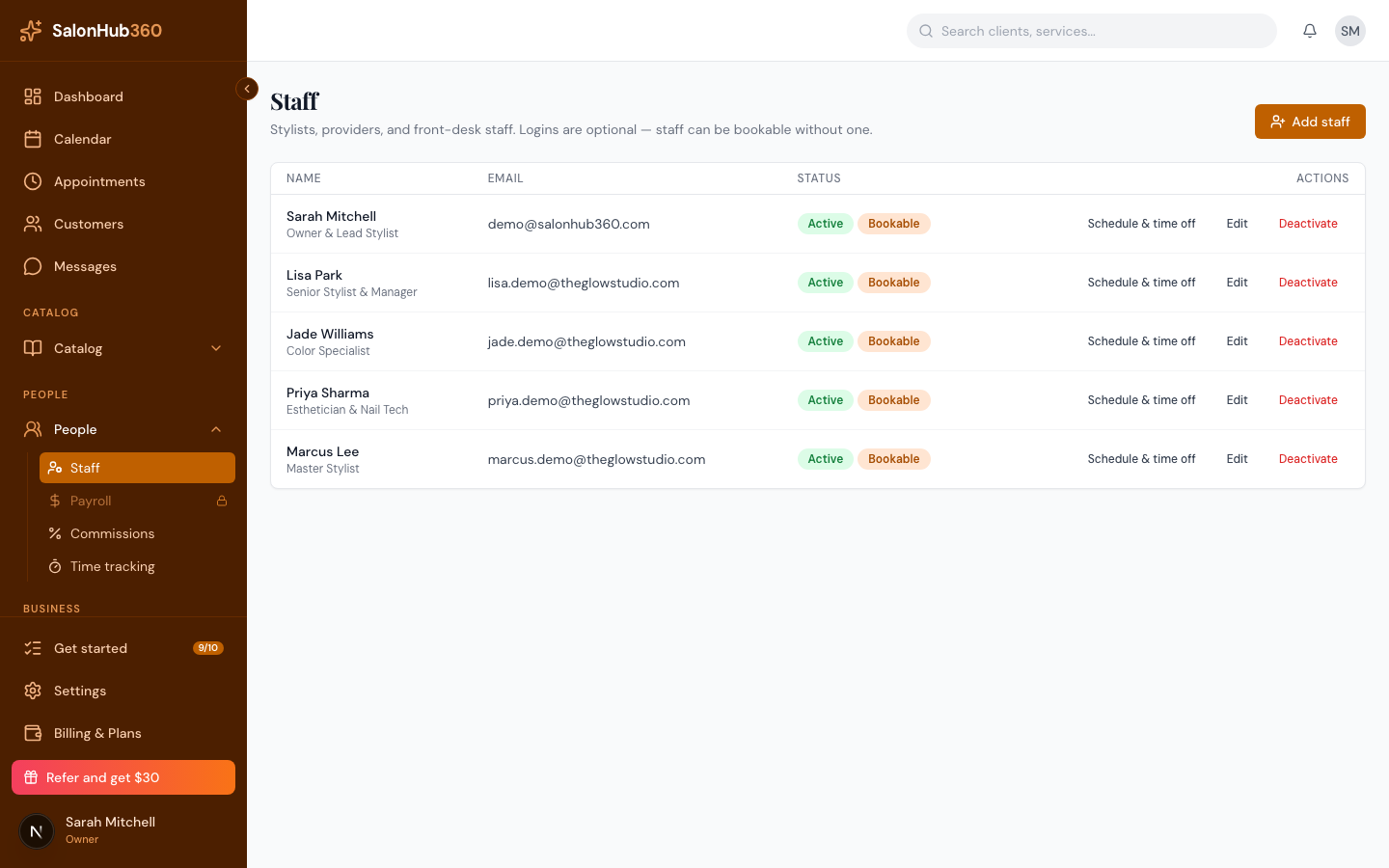
Like locations, service assignments save as you tick them.
Note: Leaving every service unticked means no restriction — this person can be booked for any service that isn't limited to specific staff. Tick services only when you want to limit them to a specific set.
Tip: You can also manage staff-to-service assignments from a service's own page under Services. Both screens update the same assignment, so they always agree.
Related articles