"My Schedule" for staff
Requirements
- Available on: All plans
- Device access: Web & mobile browser
- Permission: Any staff with a login
My Schedule is your personal view of your working hours and time off. It's where staff check when they're scheduled and request time off — without seeing the rest of the salon's settings.
What you'll see
-
In the left menu, open My Schedule.
<!-- CAPTURE: route=/my-schedule | login=provider | state=staff with a weekly schedule set | highlight=Weekly hours section | viewport=1440x900 -->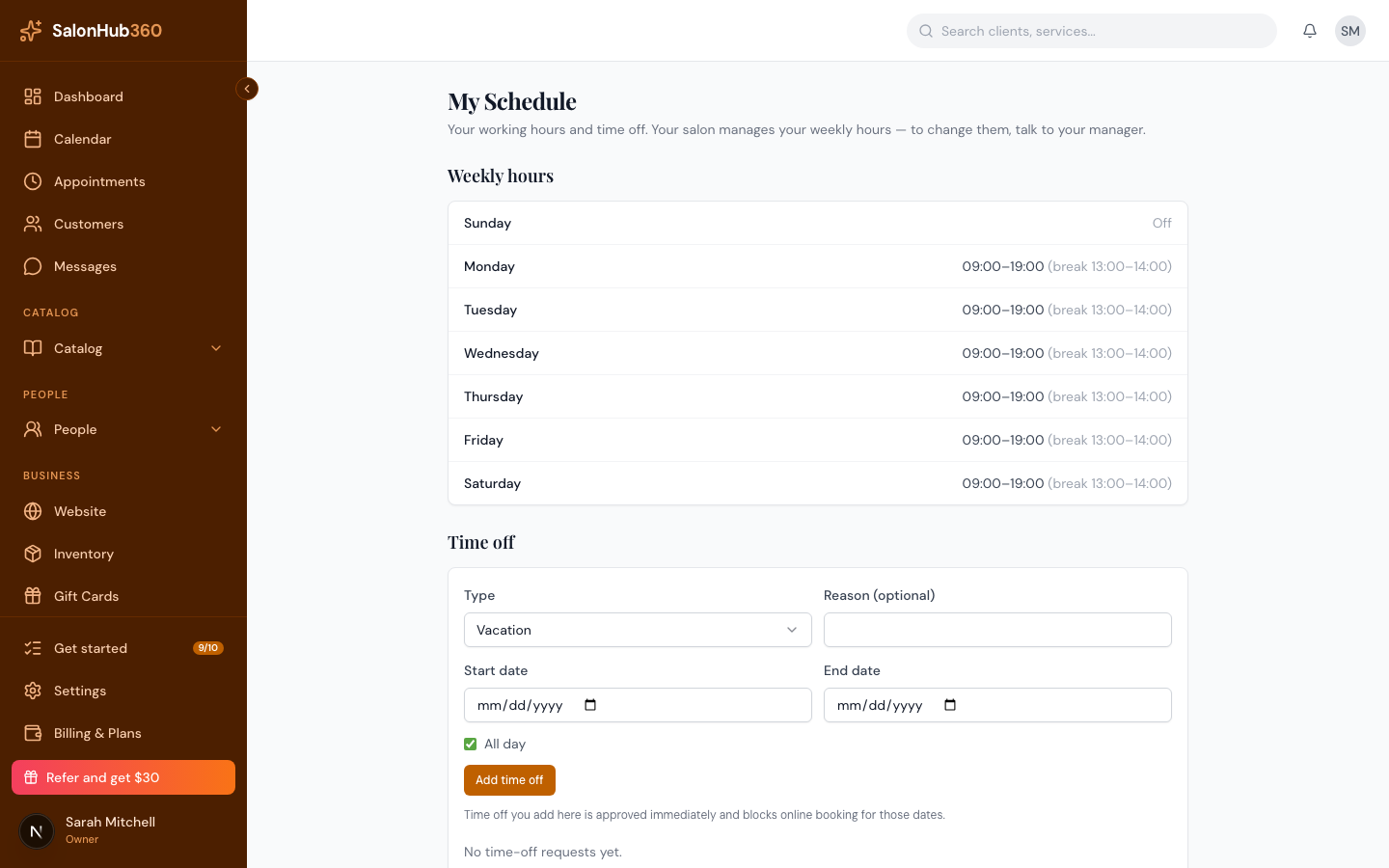
-
Weekly hours lists your working hours for each day, including any break. Days you don't work show Off.
-
Time off shows your upcoming and past time off, and lets you request more.
Requesting time off
In the Time off section, choose a Type, set your Start date and End date, and click Request time off. If your dates overlap a block that already covers you at every location, the request is refused — you're already unbookable then. Leave All day ticked for full days, or untick it to request part of a day.
Your request shows as Pending until your owner or manager approves it, and they're told about it as soon as you send it. When they decide, the status updates to Approved or Declined and you get an item in the bell at the top of the screen saying your time off was approved or declined. If they add a note when declining, you'll see it in the bell and under the Declined status. Your request doesn't block bookings until a manager approves it.
Note: Your weekly hours are read-only here — your salon manages them. To change your regular hours, talk to your owner or manager.
Tip: Want your shifts on your phone's calendar? See Subscribe to your calendar feed.
Related articles