How to add a staff member (with or without a login)
Requirements
- Available on: All plans
- Device access: Web & mobile browser
- Permission: Owner or Manager
Add the people who work at your salon — stylists, providers, and front-desk staff. A staff member can be bookable online without ever logging in, or you can give them a login (email and password) so they can sign in to SalonHub360.
Note: Your plan sets how many staff you can have: Free allows 1, Starter up to 2, Growth up to 8, Premium up to 20 (with a 2nd location), and Enterprise 20 or more (or 3+ locations). See Understanding SalonHub360 plans.
How to add a staff member
-
In the left menu, open Staff, then click Add staff.
<!-- CAPTURE: route=/staff | login=owner | state=staff list with several members | highlight=Add staff button | viewport=1440x900 -->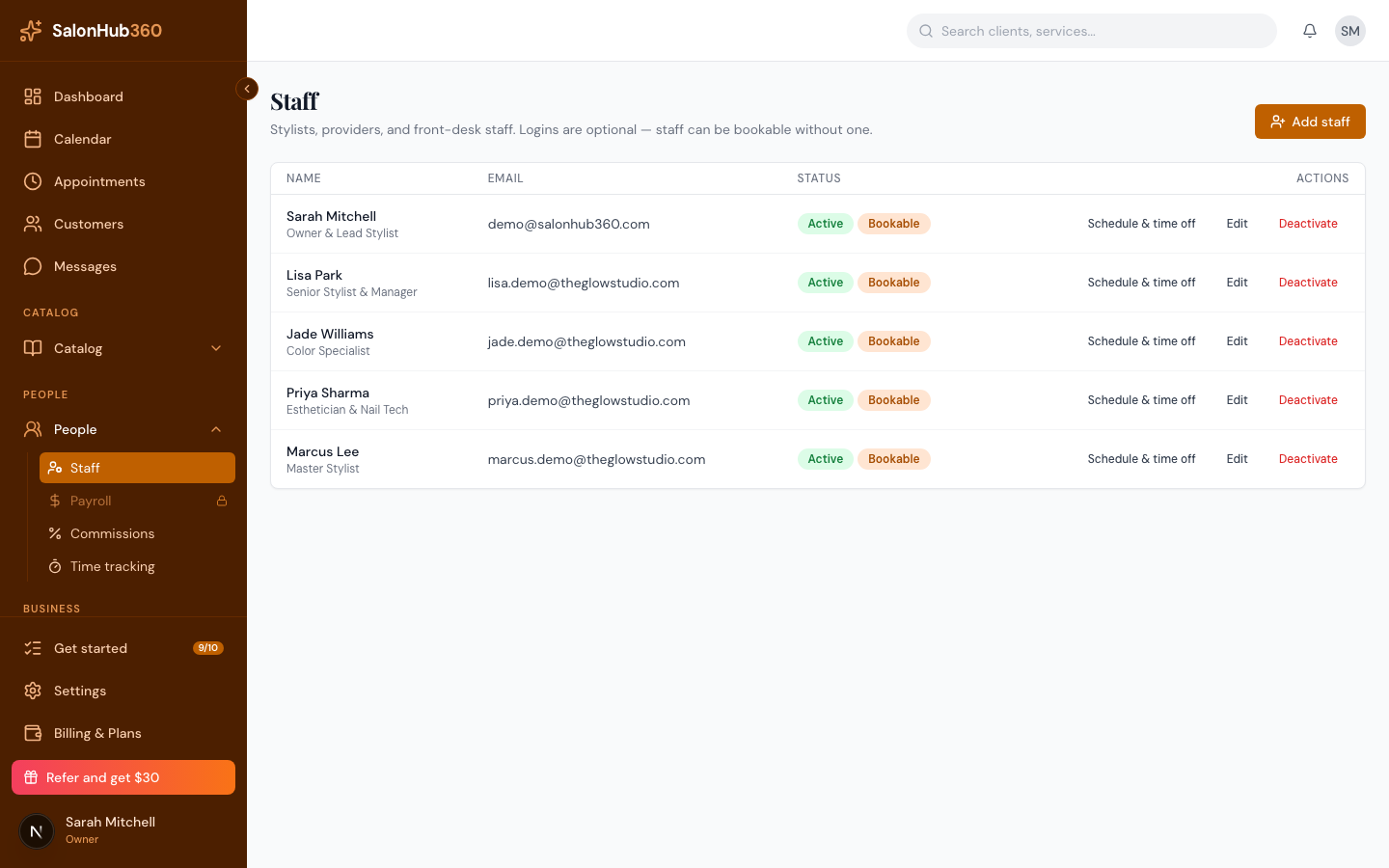
-
Enter the staff member's First name and Last name.
<!-- CAPTURE: route=/staff | login=owner | state=Add staff dialog open | highlight=First name and Last name fields | viewport=1440x900 -->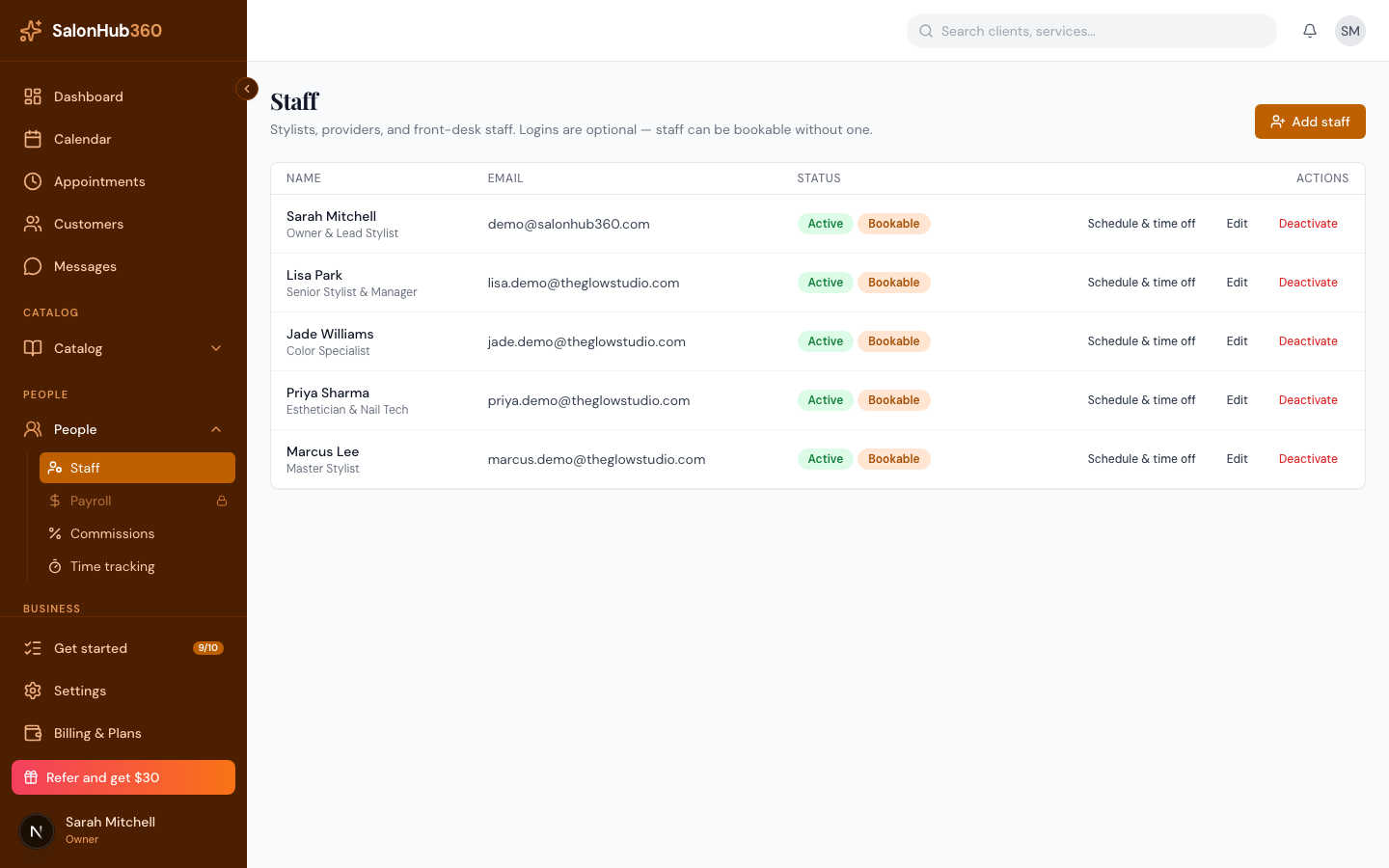
-
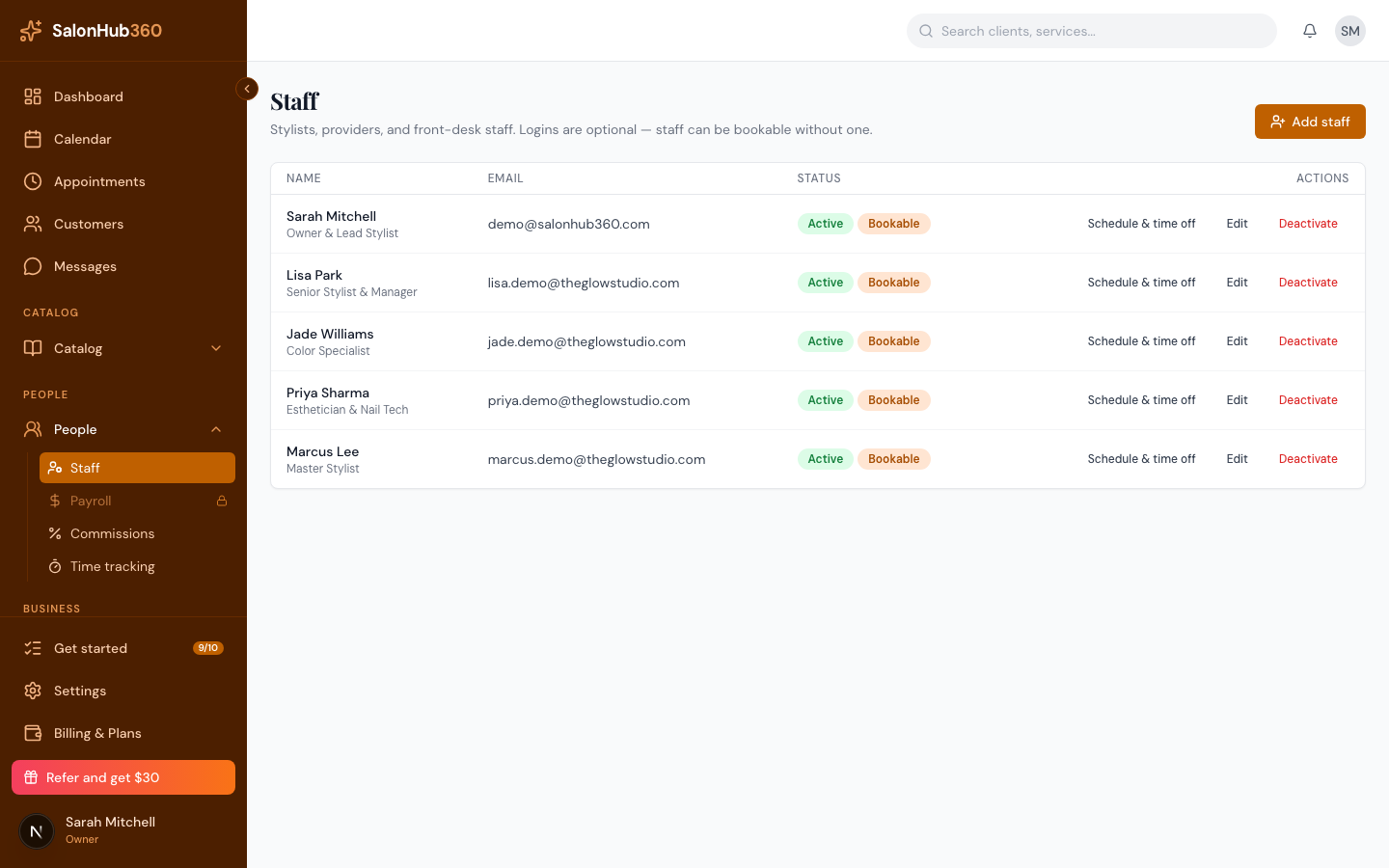
Decide whether they can sign in. Allow this staff member to log in is on by default.
- Leave it on to give them a login — enter the Email (used to log in) and an Initial password (at least 8 characters). They can change the password later.
- Turn it off to add them as bookable-only. No account is created, customers can still book them, and you can enable a login later from Edit → Details.
-
Optionally add a Title (for example, Senior Stylist) and choose an Employment type — Employee, Contractor, or Owner.
-
If your salon has more than one location, pick the Location where this person will be bookable. (With one location, this is set for you.)
-
If the login is on, a Permissions section appears with five boxes — Can see customers, Can edit customers, Can see services, Can edit services, and Can see everyone's schedule. All are unticked by default, so a new staff member sees only their own schedule. Tick what this person needs; you can change it any time later on the Permissions tab of their page. (There's no Permissions section for a bookable-only staff member — with no login, there's nothing to grant.)
-
Click Create. The new staff member appears in your list.
Note: Employment type is a label for your own records — it does not change what the person can do in the app. Permissions come from their role plus the Permissions boxes; see Staff logins, roles & permissions.
Tip: For a stylist to appear in online booking, they need at least one assigned location and the services they perform. See Assign staff to services & locations.
Related articles