Reschedule by drag-and-drop
Requirements
- Available on: All plans
- Device access: Web browser
- Permission: Owner or Manager
Need to move an appointment? Drag it to a new time right on the calendar. SalonHub360 re-checks for conflicts before it saves, so you never double-book.
How to reschedule an appointment
-
Open the Calendar in Day or Week view, where appointments sit on a time grid.
<!-- CAPTURE: route=/calendar | login=owner | state=day view with appointments | viewport=1440x900 -->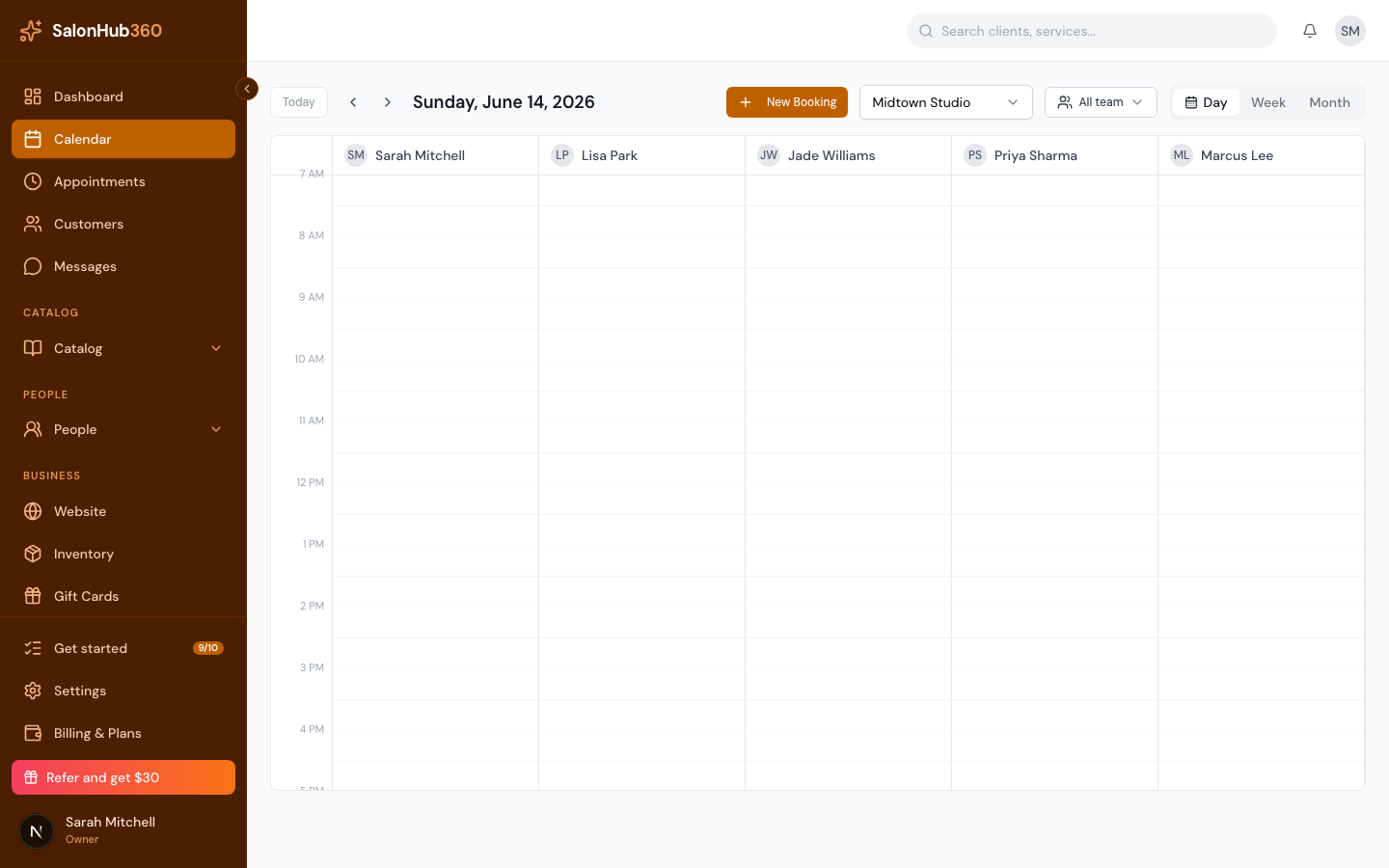
-
Click and hold the appointment you want to move, then drag it to the new time slot. A preview follows your cursor so you can see where it will land.
<!-- CAPTURE: route=/calendar | login=owner | state=appointment mid-drag | highlight=drag preview | viewport=1440x900 -->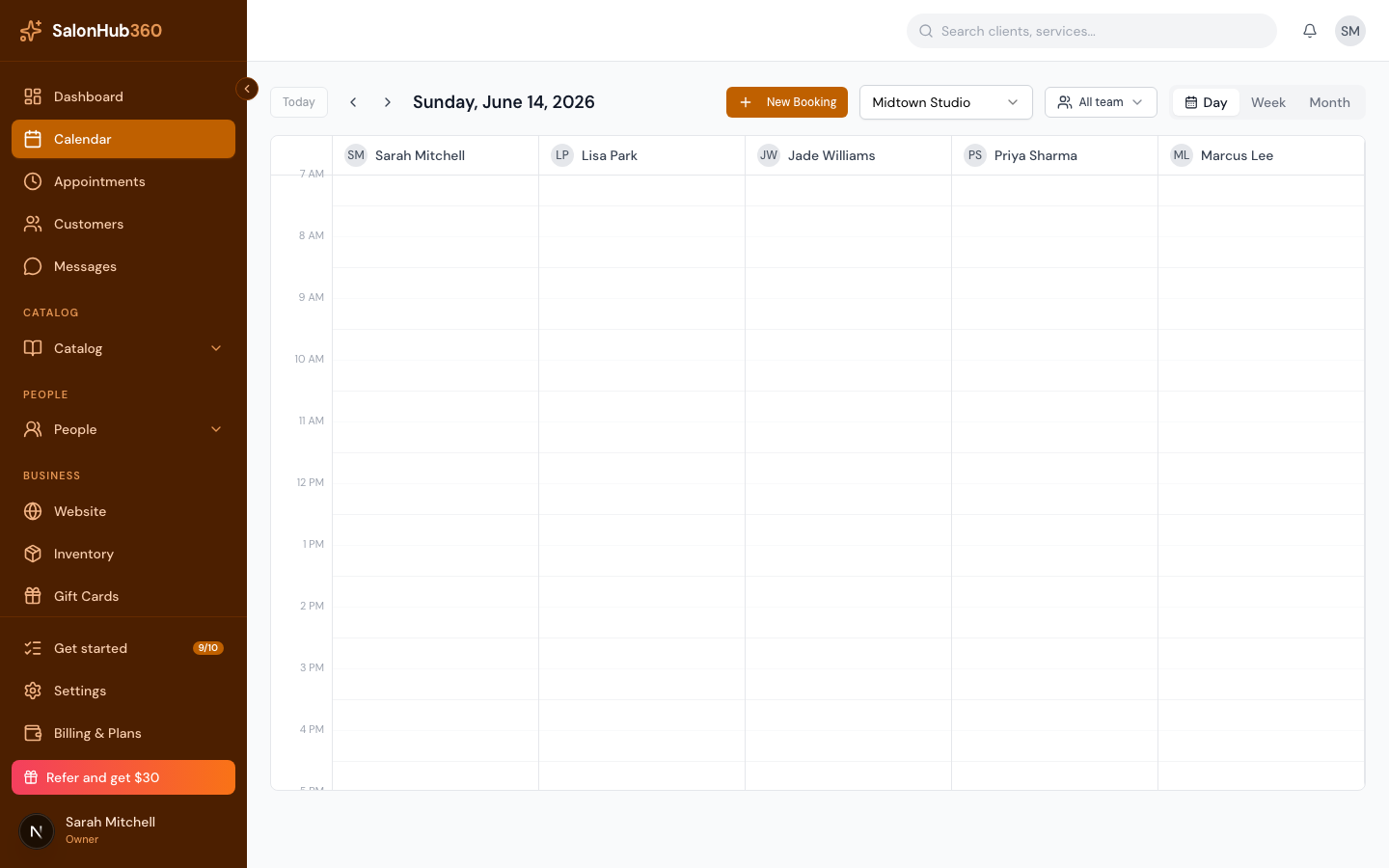
-
Release to drop it. SalonHub360 re-checks the new time against other bookings, time blocks, and time off. If it's clear, the appointment moves and the client's record is updated.
<!-- CAPTURE: route=/calendar | login=owner | state=appointment moved to new slot | viewport=1440x900 -->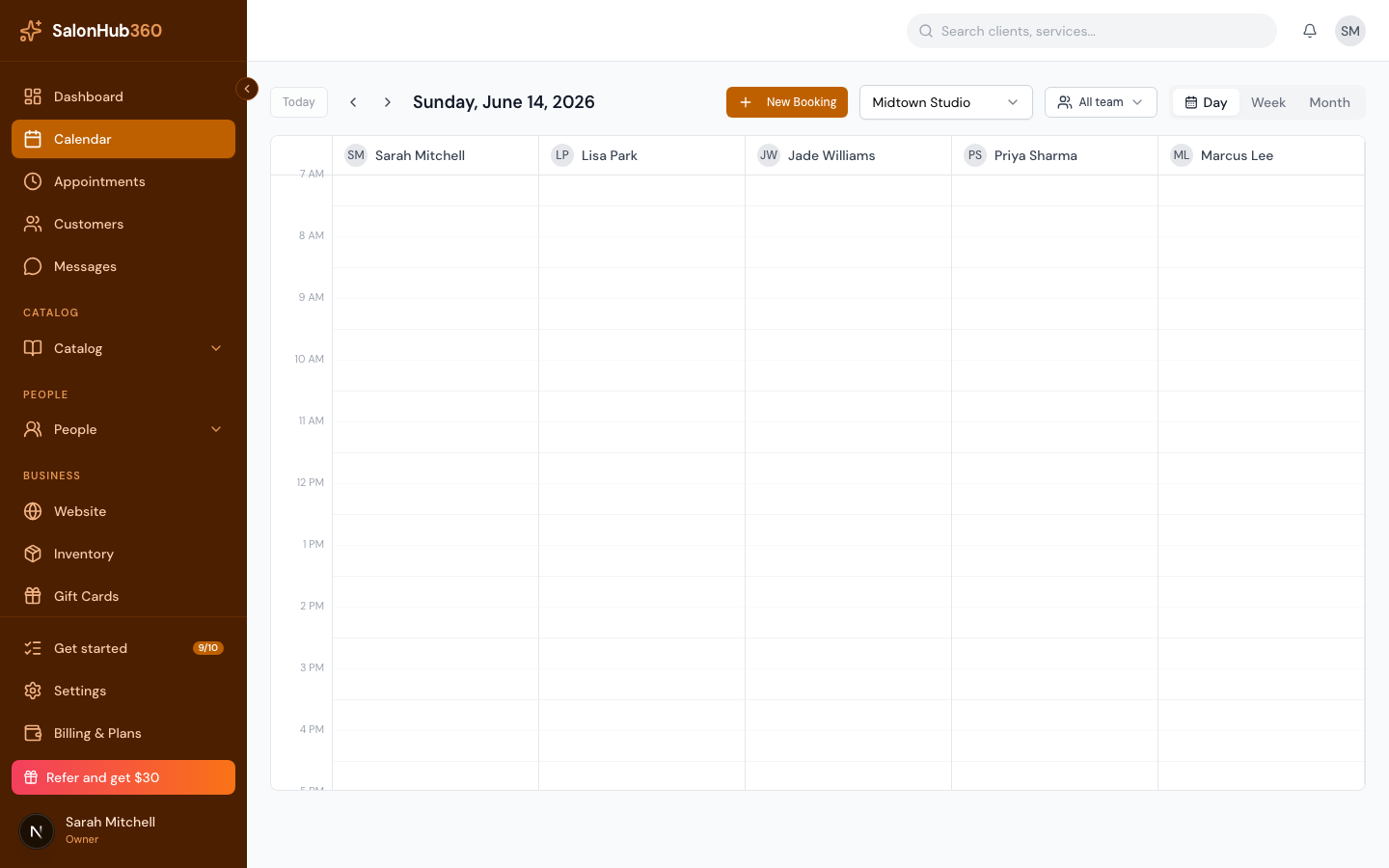
Note: If the new time conflicts with an existing booking, a blocked period, or the provider's approved time off, the move is rejected, the appointment stays put and a red message tells you why. If the provider is on approved time off, pick a time they're working, or give the visit to another provider — drag it sideways into their column at the same time, or use Provider when you edit the appointment (see Change an appointment's provider). Time-off requests that are still pending don't stop a move.
Which appointments can be moved
Only Confirmed appointments can be dragged. You can't drag an appointment that's:
- Requested (not yet confirmed) — confirm it first, then drag it,
- Checked in or In service (the client is already in the salon), or
- Completed, Cancelled, or No-show (it's already closed out).
To move one of those, handle it from its detail panel instead.
Tip: Dragging up or down in the same column changes the time, never the services or duration. Dragging straight across into another provider's column, at the same start time, changes the provider instead — see Change an appointment's provider. Dropping it in another column and at another time does nothing; do one, then the other. To change the services or the client, cancel and rebook.
Related articles