Book an appointment from the calendar
Requirements
- Available on: All plans
- Device access: Web & mobile browser
- Permission: Owner or Manager
Book a client into your calendar in a few clicks — pick the client, choose the service, assign a provider, and set the time. SalonHub360 checks availability for you as you go.
How to book an appointment
-
On the Calendar, click an empty time slot, or click New Booking in the top-right. The event drawer opens.
<!-- CAPTURE: route=/calendar | login=owner | state=day view | highlight=New Booking button | viewport=1440x900 -->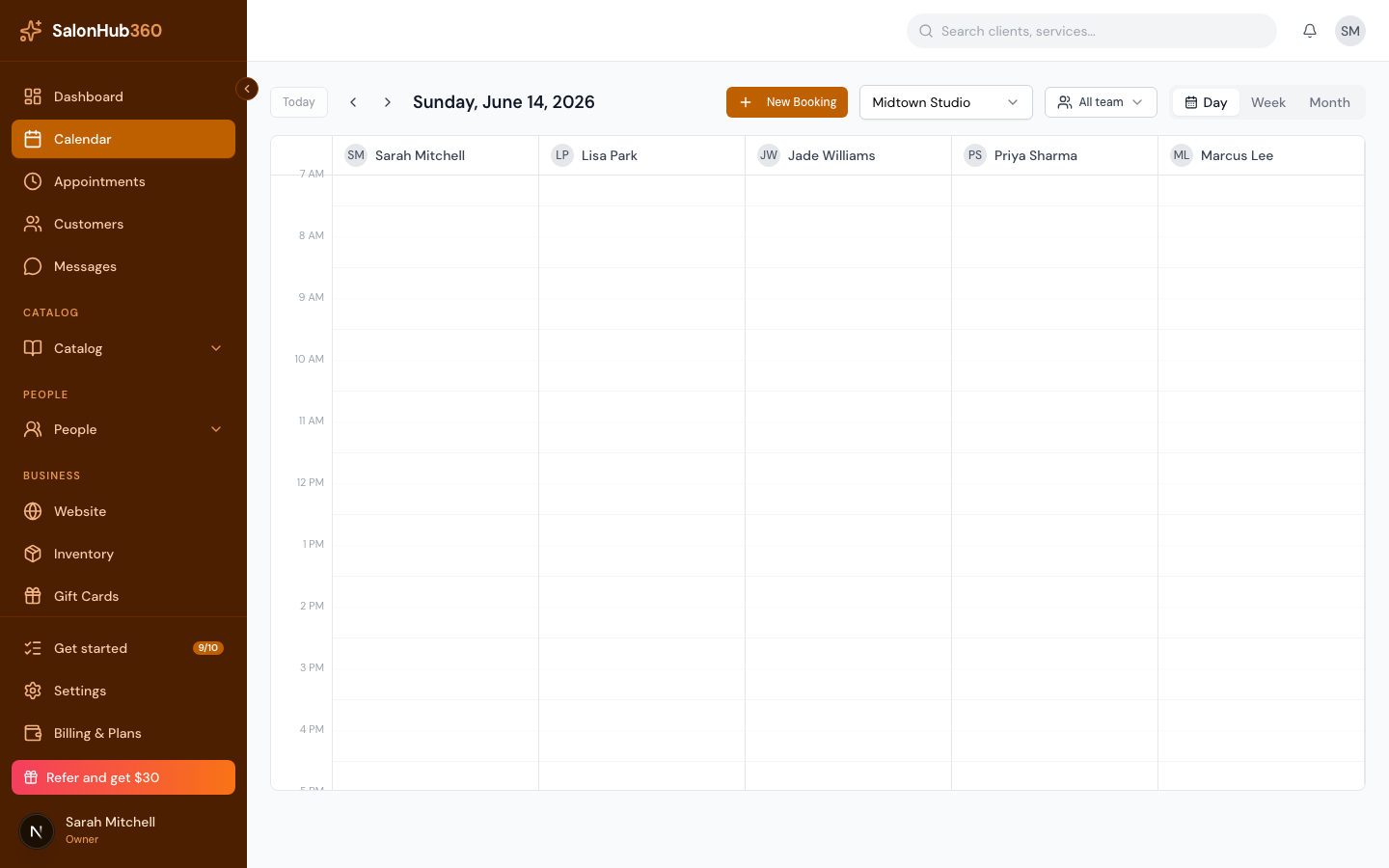
-
Leave Event type set to Appointment.
<!-- CAPTURE: route=/calendar | login=owner | state=event drawer open, Appointment selected | highlight=Event type selector | viewport=1440x900 -->
-
Under Client, search by name, email, or phone and select the client. New client? Click Add new client and enter their first name, last name, and (optionally) email and phone — no need to leave the drawer.
<!-- CAPTURE: route=/calendar | login=owner | state=event drawer, client search open | highlight=Add new client | viewport=1440x900 -->
-
Choose the Provider / staff who'll perform the service.
-
Set the Date and Start time.
-
Under Services, select one or more services. As you add services, the drawer shows the End time, total duration, and total price so you can see the full booking at a glance.
<!-- CAPTURE: route=/calendar | login=owner | state=event drawer, service selected, summary visible | highlight=End time summary | viewport=1440x900 -->
-
Add any Notes for the team (optional), then click Book appointment. The appointment appears on your calendar.
<!-- CAPTURE: route=/calendar | login=owner | state=event drawer filled out | highlight=Book appointment button | viewport=1440x900 -->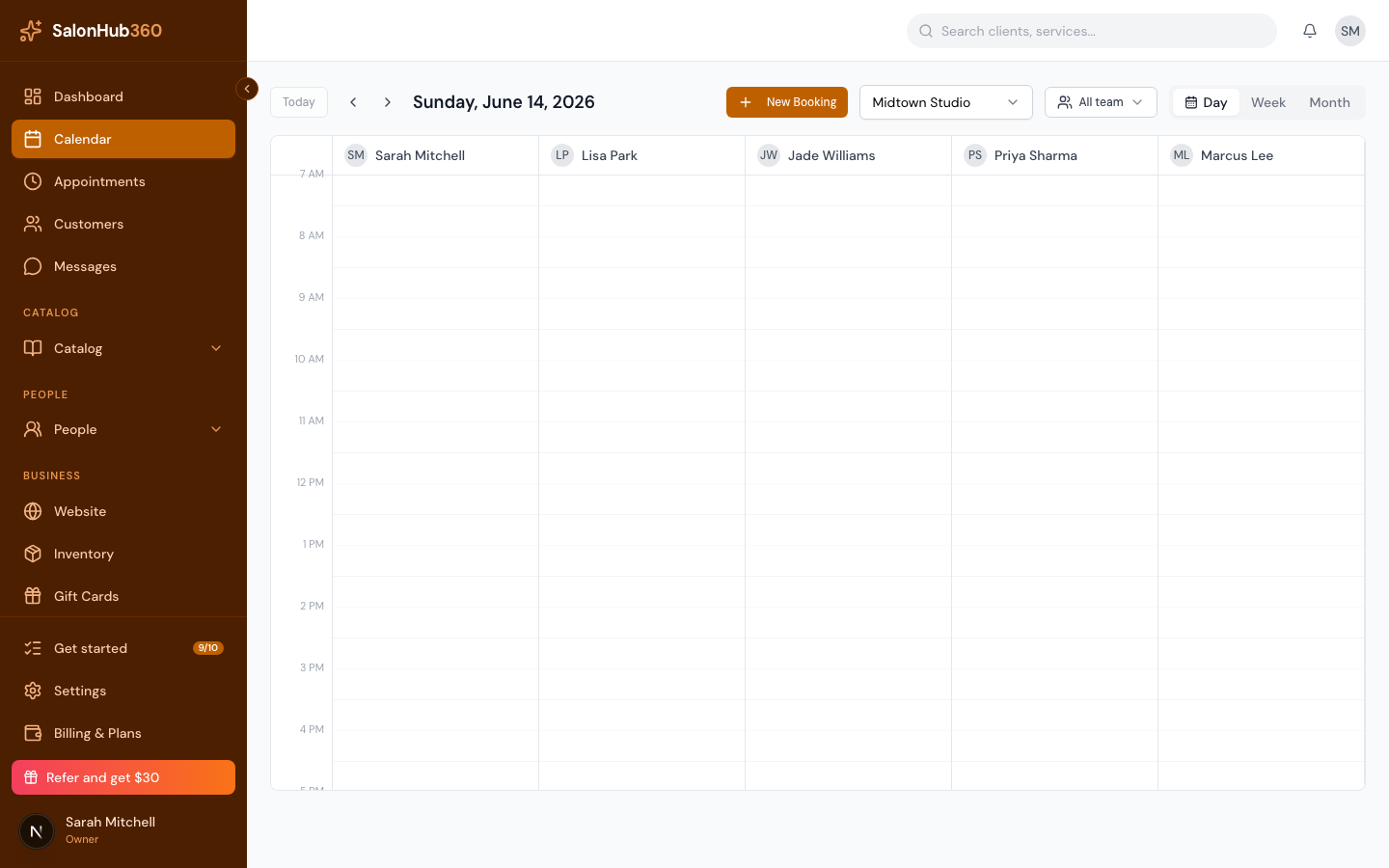
Note: If the time you picked clashes with another booking, a time block on that provider's calendar, or the provider's approved time off, SalonHub360 won't save the booking and shows a message — choose a different time or provider. If it's a time block, you can edit the block; if it's approved time off, change it from Staff → Time off for that staff member.
Tip: You can also start a booking from the Appointments page with the New Appointment button — it opens the same drawer.
Related articles