How to add your brand, fonts & SEO
Requirements
- Available on: Starter plan and above
- Device access: Web & mobile browser
- Permission: Owner or Manager
Make your site look like you, and help clients find it on Google and see it nicely when your link is shared.
Set your font
Note: Setting a custom font is included on Growth and up, or with the Advanced website builder add-on on Starter (in Billing).
Your logo and brand color come from Settings → Appearance so they stay in sync with your booking page. In the builder, you can set the font.
-
In the left menu, open Website, then go to the Branding tab and find the Typography card.
<!-- CAPTURE: route=/website | login=owner | state=Branding tab, Typography card visible | highlight=Font family field | viewport=1440x900 -->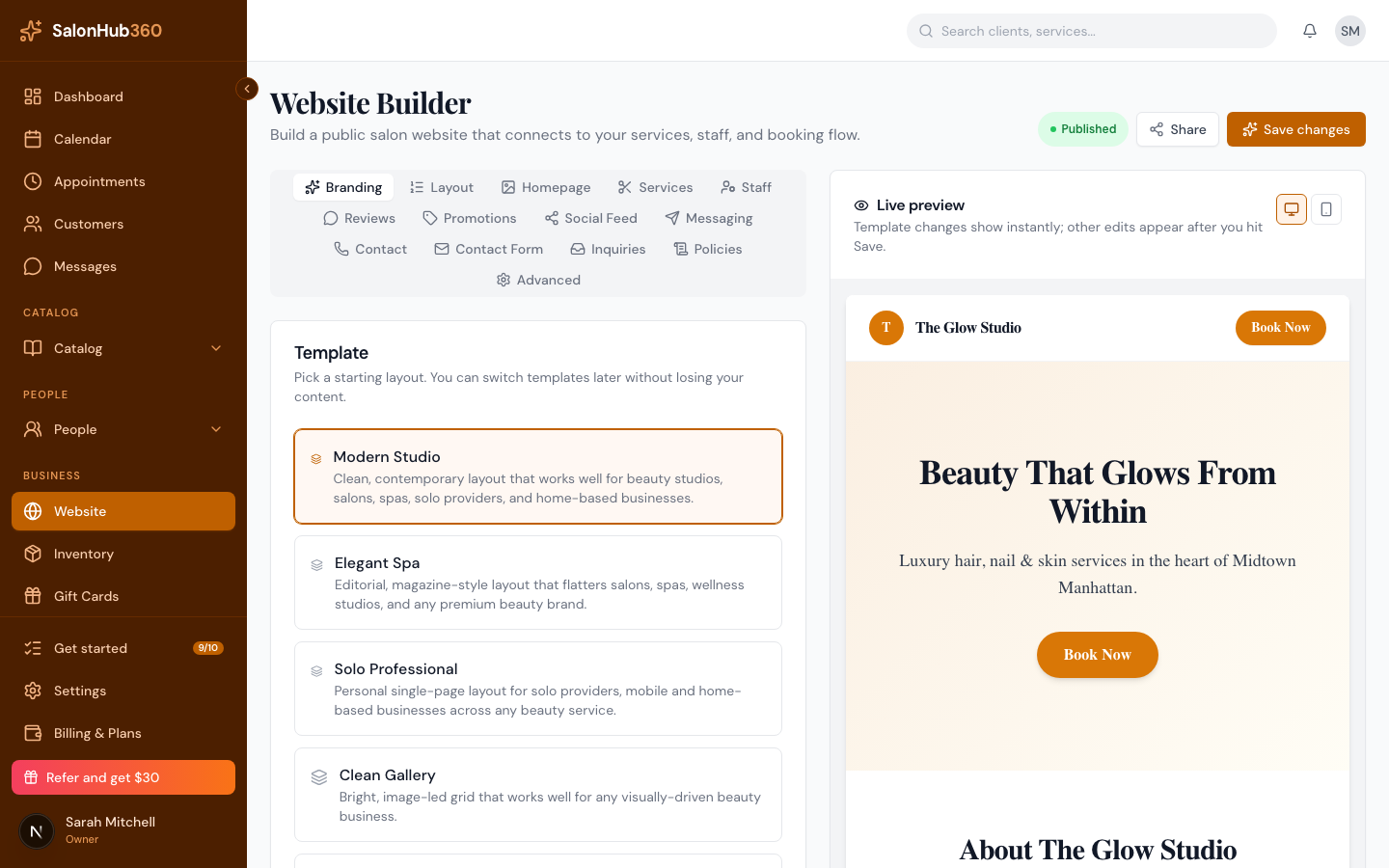
-
In Font family (CSS name), type a web font name — for example,
Playfair Display,Poppins, orInter. -
Click Save changes.
Note: To change your logo or brand color, go to Settings → Appearance — those apply across your dashboard, booking page, and website together.
Add your SEO and social-share details
These help your site show up well in search results and look polished when someone shares your link.
-
In the builder, open the Advanced tab.
<!-- CAPTURE: route=/website | login=owner | state=Advanced tab, SEO and Social sharing cards visible | highlight=SEO card | viewport=1440x900 -->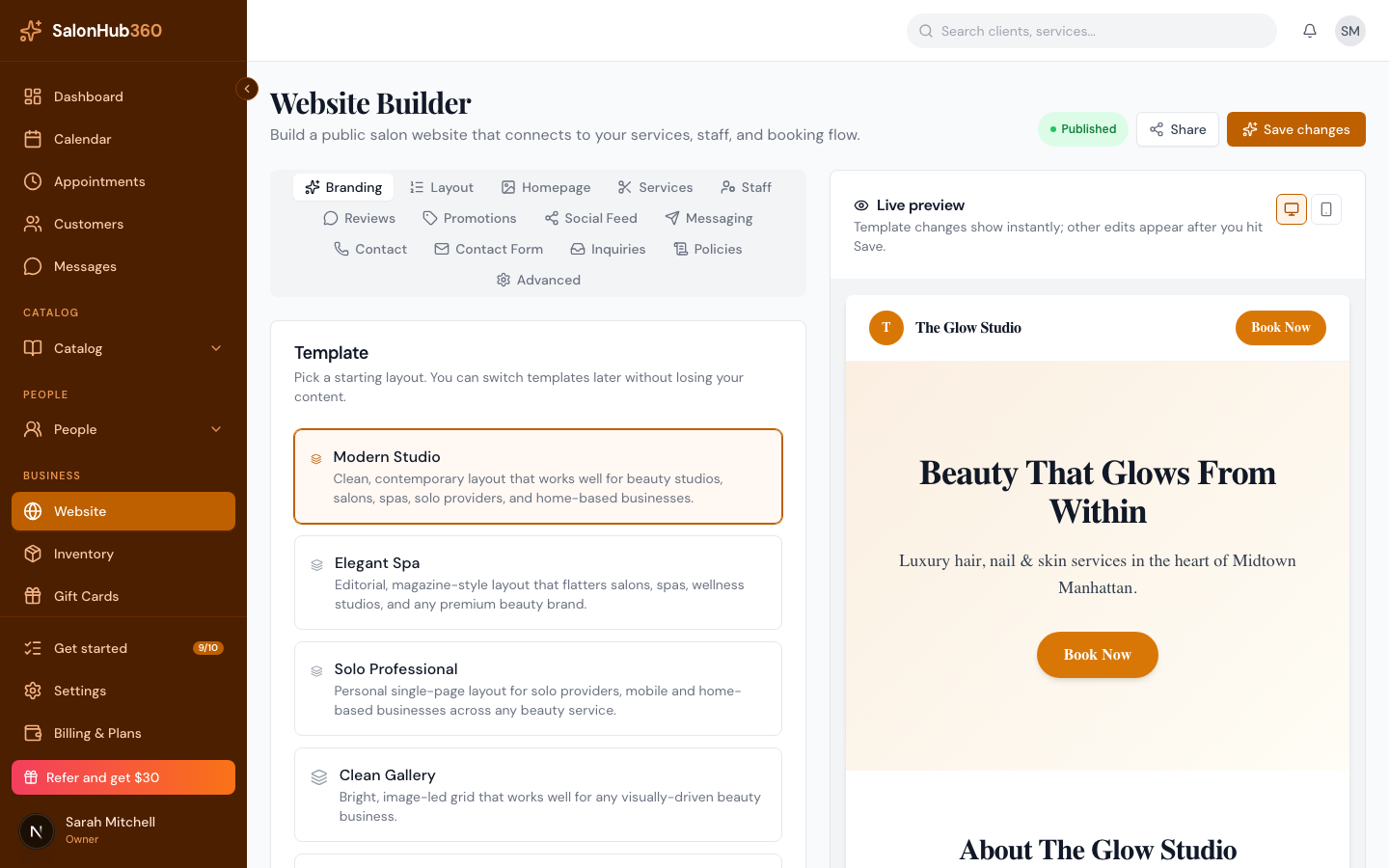
-
In the SEO card, fill in:
- Meta title — the headline in Google results (the first 60 characters show).
- Meta description — a short summary (aim for 150–160 characters).
-
In the Social sharing card, add what people see when your link is shared on Instagram, Facebook, X, or in iMessage:
- Social title and Social description — these fall back to your meta title and description if left blank.
- Social share image — a square or 1200×630 image works best.
-
Click Save changes.
Tip: Leave the social fields blank and your meta title and description are used automatically — so it's fine to start with just the SEO card.
Related articles